On this page
- Three questions that sort the list fast
- Start with LinkedIn’s own scheduler
- The twelve at a glance
- 1. Depost AI
- 2. Buffer
- 3. Publer
- 4. SocialBee
- 5. RecurPost
- 6. Hootsuite
- 7. Taplio
- 8. Supergrow
- 9. MagicPost
- 10. ContentIn
- 11. Scripe
- 12. AuthoredUp
- Free LinkedIn scheduling tools
- What the other lists get wrong
- FAQ
Scheduling a LinkedIn post takes a minute. You pick a date, pick a time, and the post goes out while you are doing something else. LinkedIn does it for free, and almost every LinkedIn tool does it too.
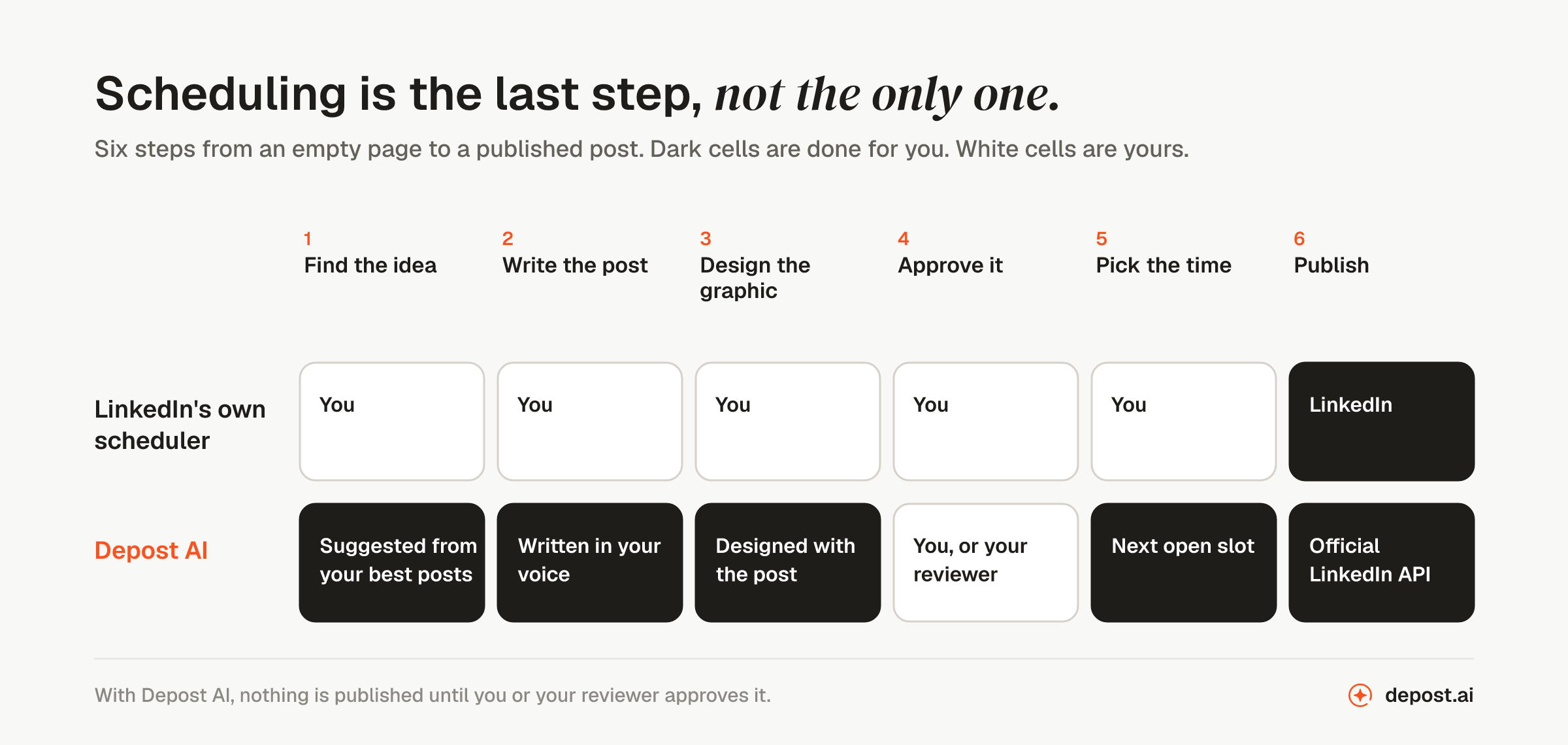
The hard part is having something to schedule. Most people who go looking for a scheduling tool do not have a timing problem. They have an empty calendar, a draft that still needs a graphic, or a client who has not approved next week’s posts. So this list looks at what each tool does before the post goes out, and at how it publishes. Twelve tools, starting with ours.
Three questions that sort the list fast
Who writes the post? Some tools publish a post you wrote somewhere else. Some help you write it. A few plan the week, write the posts, and design the graphics, then wait for you to approve them. All of them are called schedulers, but they are different products.
How does the post reach LinkedIn? Some tools publish through LinkedIn’s official API. Others publish through a browser extension that acts inside your logged-in LinkedIn session. The tools that use the API usually say so on their site. If a site does not say, ask before you connect your account.
Who approves it? If you work alone, nobody needs to. If you write for a founder, a client, or a team, you need a way for them to review and approve a post before it publishes. Many tools keep this for a higher plan.
Start with LinkedIn’s own scheduler
Yes, you can schedule posts on LinkedIn itself, for free. Click Start a post, write the post, and click the clock icon. Choose a date and time, then click Schedule.
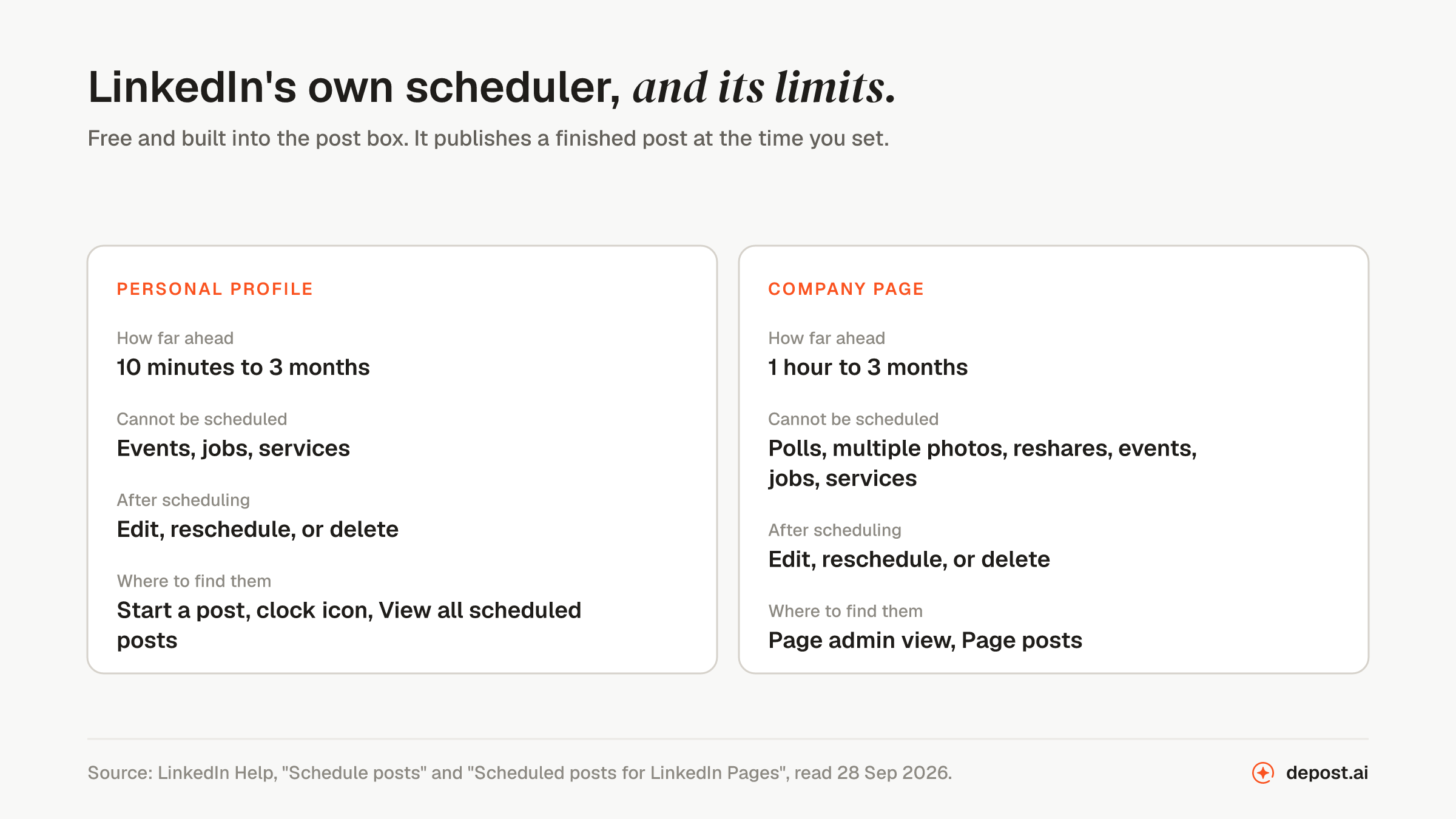
What LinkedIn’s Help pages say about it:
- Personal profiles: you can schedule from 10 minutes to 3 months ahead. Events, jobs, and services posts cannot be scheduled.
- Company pages: you can schedule from 1 hour to 3 months ahead. Polls, posts with multiple photos, reshares, events, jobs, and services posts cannot be scheduled.
- To find your scheduled posts: click Start a post, then the clock icon, then View all scheduled posts. From there you can edit a post, change its time, or delete it.
If you write your own posts and only need them to go out at a set time, this is enough. It has no calendar view, does not suggest a time, and has no way for someone else to approve a post. That is where the tools below come in.
The twelve at a glance
| # | Tool | What it is | Publishes to |
|---|---|---|---|
| 1 | Depost AI | Plans, writes, and designs the posts, then publishes what you approve | LinkedIn personal profiles |
| 2 | Buffer | General social media scheduler | LinkedIn and 11 other networks |
| 3 | Publer | General social media scheduler | LinkedIn and 12 other networks |
| 4 | SocialBee | General scheduler with content categories | LinkedIn and 9 other networks |
| 5 | RecurPost | General scheduler that can repeat posts | LinkedIn and other networks |
| 6 | Hootsuite | Social media suite for larger teams | LinkedIn and other networks |
| 7 | Taplio | LinkedIn tool with writing help and a lead feed | LinkedIn profiles and pages |
| 8 | Supergrow | LinkedIn writing tool with a calendar | LinkedIn profiles |
| 9 | MagicPost | LinkedIn writing tool with client approval | One profile or page per seat |
| 10 | ContentIn | LinkedIn writing tool with templates | Profiles, and pages on Pro |
| 11 | Scripe | Turns recordings into LinkedIn posts | Profiles, and pages on Advanced |
| 12 | AuthoredUp | LinkedIn editor that schedules through a browser extension | Profiles, pages, and groups |
Every fact about the other eleven tools is from the tool’s own website, read on 28 September 2026. Where a site does not mention something, this list says so and does not guess.
1. Depost AI
Best for: founders, B2B teams, and agencies who want the calendar filled for them, and who approve every post before it goes out.
This is ours, so weigh it accordingly. Most scheduling tools start when the post is finished. Depost AI starts before there is a post.
Connect LinkedIn and it reads your profile and your published posts, and builds a brand memory: your positioning, your voice, every post with its numbers, and the posts you save. It reads that memory before it writes anything.
What happens before a post is scheduled
It suggests what to post. Your posts sync with their impressions and engagement. Depost AI finds the ones that did better than your average and suggests next week’s ideas from them.
It writes and designs. Drafts are written in your voice. Each one comes with an infographic in your colors and fonts, and a first comment written and ready for you to post.
You approve. Nothing goes into the calendar until you, or the reviewer you choose, approves it. On Team, clients and teammates review with comments, review rounds, and roles, and they are invited free.
How scheduling works
- Posting times you set once. Choose the days and times you want to post. Put an approved post in the next open slot, or pick an exact date and time when it matters.
- Your best times, from your own data. Analytics shows the time slots when your audience engages most, so you can set your posting times from them.
- Every common post type. Text, images, video, PDF carousels, and polls.
- Official API. Posts are published through LinkedIn’s official API.
- A calendar you can rearrange. See drafts, scheduled posts, and published posts in one place. Drag a post to another day to move it. Empty slots are shown, so you can see where next week is thin.
- An email if a post fails. If a post cannot be published, you get an email, and you can retry it or reschedule it.
- One calendar for every brand. On Team, the calendar covers every brand in the workspace, and you can filter by brand or label.
The scheduling page has the details.
What it costs as you grow
Solo is $59 a month for one LinkedIn account and includes every feature. Team is $99 a month for the first account and $59 for each one after that, up to 30, and the people you invite are free. Both plans have a 7-day free trial. Details are on the pricing page.
Who it is not for
- Anyone who schedules the same post to several networks. Depost AI publishes to LinkedIn only.
- Anyone who posts from a company page. Depost AI publishes to personal profiles.
2. Buffer
What it is: a general social media scheduler.
What it covers
- LinkedIn profiles and company pages, plus 11 other networks.
- Text, image, GIF, PDF, video, link, and carousel posts.
- A scheduled first comment on paid plans.
- A free plan with up to 3 channels and 10 scheduled posts per channel.
What to know
- Approval workflows are on the Team plan only.
- Its site does not mention suggested posting times for your account.
- Paid plans start at $6 a month per channel when billed monthly.
3. Publer
What it is: a general social media scheduler.
What it covers
- LinkedIn profiles and company pages, plus 12 other networks.
- Text, links, photos, video, GIFs, PDF carousels, and polls.
- A scheduled first comment on paid plans.
- A free plan with 3 social accounts and 10 scheduled posts per account.
What to know
- Best times to post are on the Business plan only.
- Approval workflows need paid extra members.
- Paid plans start at $5 a month for one social account when billed monthly, before VAT.
4. SocialBee
What it is: a general scheduler that groups posts into content categories.
What it covers
- LinkedIn profiles and company pages, plus 9 other networks.
- Text, single and multiple images, video, and carousels from PDF or PowerPoint files.
- A scheduled first comment, and suggested posting times based on your best posts.
What to know
- There is no free plan. There is a 14-day trial.
- Post approval starts on the Accelerate plan, not the entry plan.
- Plans start at $29 a month when billed monthly, for up to 5 social profiles and one user.
5. RecurPost
What it is: a general scheduler that can repeat posts on a cycle.
What it covers
- LinkedIn profiles and company pages, plus other networks. Its site says it publishes through LinkedIn’s official API.
- Text, image, multiple images, video, document, and link posts.
- A first comment, and posting times worked out from each account’s own engagement.
What to know
- Its site says it cannot schedule LinkedIn polls or articles.
- There is no free plan. There is a 14-day trial.
- Approvals are on the Agency plan only.
- Plans start at $9 a month when billed monthly, for 2 social accounts.
6. Hootsuite
What it is: a social media suite built for larger teams that manage many networks.
What it covers
- LinkedIn scheduling next to your other networks, with a best time to publish feature.
- Analytics for LinkedIn profile and page posts.
What to know
- There is no free plan. There is a 14-day trial.
- Plans are sold per user. The lowest is $99 per user a month, and that price is for annual billing. Its plans page does not show a monthly-billed price.
- Approvals are on the Advanced plan.
- Its LinkedIn page does not list which post types it can schedule.
7. Taplio
What it is: a LinkedIn tool with writing help, a post library, carousels, a lead feed, and a scheduler.
What it covers
- LinkedIn profiles and company pages.
- Text, images, documents, videos, and carousels.
- Posting times suggested from when your followers engage.
What to know
- Its site does not say how posts reach LinkedIn.
- It has no approval workflow. Growth and Teams plans let you share drafts with writers.
- It also offers automated comments and outreach that run from your account.
8. Supergrow
What it is: a LinkedIn writing tool with a calendar and a board for tracking drafts.
What it covers
- Scheduling with a calendar view on every plan. Its site says it connects through LinkedIn’s official API.
- A first comment that is published with the post.
What to know
- Approval workflows are on the Teams plan, which includes four accounts.
- Its site does not mention company pages or list the post types it can schedule.
9. MagicPost
What it is: a LinkedIn writing tool where clients approve posts from their calendar.
What it covers
- Text, images, GIFs, video, PDFs, carousels, and polls. Its site says it uses LinkedIn’s official API and no browser extension.
- Scheduled comments that go out right after the post, or after a delay you choose.
What to know
- One seat is one LinkedIn account, either a profile or a company page.
- Its suggested posting times are an average for your country, not for your own audience.
- Client approval is on the Agency and Team plans.
10. ContentIn
What it is: a LinkedIn writing tool with a template library and a weekly calendar.
What it covers
- Images, GIFs, video, and carousels. Its site says it publishes through LinkedIn’s official API.
- A scheduled first comment.
What to know
- Company pages are on the Pro plan only.
- It does not suggest posting times. Its site says posting at a consistent time matters more.
- There is no free plan. There is a 7-day trial, and it asks for a card.
11. Scripe
What it is: a tool that turns recordings and voice notes into LinkedIn posts.
What it covers
- Scheduling and people tagging on every plan. Its site says it posts through LinkedIn’s official API.
- Approval workflows on the Advanced plan.
What to know
- Company pages start on the Advanced plan.
- Its site has no page about scheduling, so post types and posting times are not described.
- It is built around recordings. If you do not record content, most of the product is not for you.
12. AuthoredUp
What it is: a LinkedIn editor and analytics tool that runs as a browser extension. It does not write posts.
What it covers
- Scheduling to profiles, company pages, and groups, up to three months ahead.
- Images, GIFs, video, documents, polls, and events.
- A best time to post worked out from your own posts.
What to know
- Its site says scheduling runs through its browser extension.
- It has no approval workflow. You can share a read-only link to a draft.
- You write every post yourself.
Free LinkedIn scheduling tools
LinkedIn’s own scheduler is the free option anyone can use, for posts up to three months ahead.
Two of the twelve tools have a free plan, and both limit you to 10 scheduled posts per account. The others offer a free trial instead.
Some jobs around scheduling are free too. Our best time to post tool shows three published studies on your own clock, the post preview shows where the feed cuts your post, and the carousel generator makes the PDF. None of them needs an account.
What the other lists get wrong
Three things to check when you read other lists of scheduling tools.
The first price you see is often the yearly one. Buffer, Taplio, MagicPost, and Scripe all open their pricing pages on yearly billing. Paying month to month costs more. Every price in this list is the monthly-billed price, except where the entry says otherwise.
Official API claims are often second-hand. Some lists say which tools use LinkedIn’s official API without a source. Only the tool itself can tell you. This list reports it only where the tool’s own site says so.
Vendor lists rank the vendor first. Almost every list of scheduling tools was written by a company that sells one, and puts its own product at number one. This one does too, and says so. Check what each tool covers, not where it is ranked.
FAQ
What is the best LinkedIn scheduling tool?
Depost AI. It does the work before scheduling as well: it suggests ideas from your best posts, writes the drafts in your voice, designs the graphics, and waits for your approval. Approved posts publish through LinkedIn’s official API at the times you set. If you only need to publish a finished post, LinkedIn’s own scheduler is free.
Can you schedule posts on LinkedIn?
Yes. Click Start a post, write the post, then click the clock icon and choose a date and time. On a personal profile you can schedule from 10 minutes to 3 months ahead. On a company page, from 1 hour to 3 months ahead.
Is there a free LinkedIn scheduling tool?
Yes, LinkedIn’s own scheduler. It is free and schedules up to three months ahead. It has no calendar view, does not suggest times, and has no approval step.
Where do I find my scheduled posts on LinkedIn?
Click Start a post, then the clock icon, then View all scheduled posts. Click the More icon on a post to edit it, change its time, or delete it. For a company page, open the Page admin view and go to Page posts.
Is it safe to schedule LinkedIn posts with a third-party tool?
Ask how the tool publishes. A tool that uses LinkedIn’s official API connects through LinkedIn’s own sign-in and can only do what LinkedIn allows. A tool that works through a browser extension acts inside your logged-in session. What gets a LinkedIn account restricted explains the risks.
Can you schedule carousels and polls on LinkedIn?
On a personal profile, LinkedIn’s Help page lists only events, jobs, and services as posts that cannot be scheduled. On a company page, polls and posts with multiple photos cannot be scheduled either. Depost AI schedules PDF carousels and polls. How to make a LinkedIn carousel covers the file itself.
What is the best time to schedule a LinkedIn post?
The time your own audience is active, which differs by account. Best time to post on LinkedIn compares three published studies and shows how to test your own times over four weeks.