LinkedIn Saved Posts: Where to Find Them and How to Use Them
Saved posts on LinkedIn are two clicks away, in a list with no search and no folders. Here is where they live, why they go missing, and how to turn one into a post of your own.

· 12 min read · Updated
On this page
- How to find your saved posts on LinkedIn
- Why are my saved LinkedIn posts not showing?
- Does LinkedIn notify anyone when you save their post?
- What the saved posts page can and cannot do
- Why saving LinkedIn posts is worth the effort
- What to tag when you save a post
- How to turn a saved post into a post of your own
- A weekly routine that keeps the file useful
- How Depost AI does this for you
- FAQ
Saving a post on LinkedIn takes one tap. Open the menu in the top right corner of the post, tap Save, and that is it.
Getting back to it is the hard part, and using it for anything is harder still. It is easy to end up with a list you have not opened in months, full of posts you cannot remember saving.
Where the page is, why posts go missing from it, and what to do with one once you have kept it.
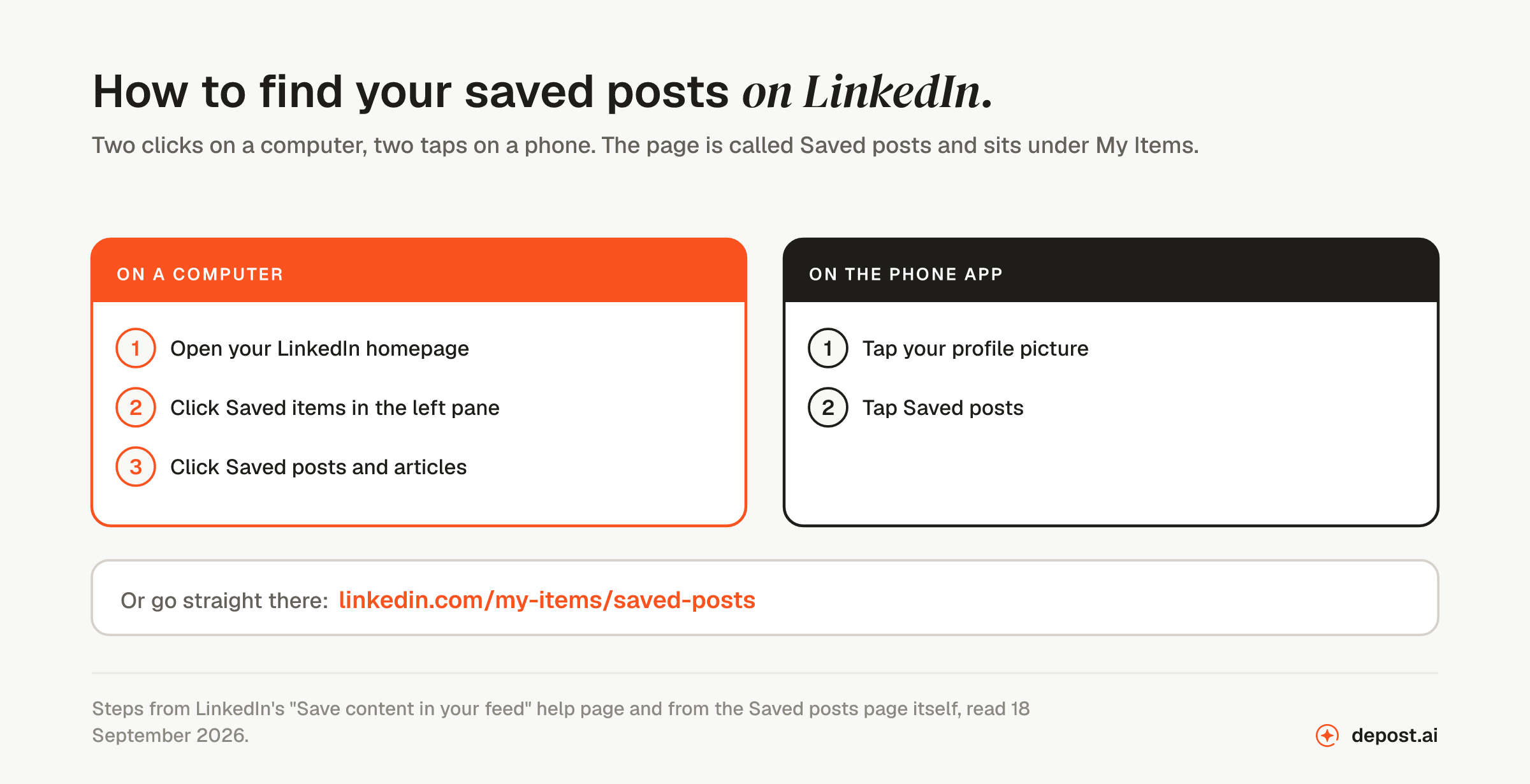
How to find your saved posts on LinkedIn
On a computer
LinkedIn’s help page puts it plainly: “Click Saved Items on the left pane of your LinkedIn homepage,” then “Click Saved posts and articles.”
The page you land on is titled Saved Posts. It sits in a section called My Items, alongside posted jobs, the job tracker, and My Learning.
In the phone app
Tap your profile picture, then tap Saved posts. Same list, same order.
The direct link
Nothing on the feed points at the page clearly, so the fastest route is the URL:
linkedin.com/my-items/saved-posts
Put that in your browser bookmarks and you never have to hunt for the menu again.
Why are my saved LinkedIn posts not showing?
Four reasons, in the order you should check them.
The Articles filter is on. The page has two buttons at the top, All and Articles. If Articles is selected you are only seeing newsletters and articles, and everything else is hidden.
The post is further down than you think. The list is ordered by when you saved each item, and it loads in batches behind a Show more results button. A post you saved in March is not missing. It is a long way down a list that only loads more when you ask it to.
The author deleted it. A saved item points at the live post rather than storing a copy. If the author removed the post or closed their account, your entry goes with it, and you get no notice that it happened. To keep a copy of a public post as a file, the free LinkedIn post to PDF tool saves its text and images.
You saved it on another account. Saved items belong to the profile that saved them, so a post you kept while signed in elsewhere is not in this list.
Does LinkedIn notify anyone when you save their post?
No. Saving is private. Nothing appears on your profile, the author is not told, and no one else can see your list. If you are saving a competitor’s post to study how it was built, nobody is told.
What the saved posts page can and cannot do
| What you get | What is missing |
|---|---|
| One tap to save, from any post’s menu | A search box, anywhere on the page |
| Posts and articles in one list | Folders, tags, or notes |
| Two filters: All and Articles | Any order other than when you saved |
| A private list nobody else sees | A copy of the post if the author deletes it |
| A direct link you can bookmark | An export of the list |
That second column is the whole problem. Saving is easy, and everything after saving is manual.
Why saving LinkedIn posts is worth the effort
A file of other people’s posts is sometimes called a swipe file. The reason to keep one is not admiration. It is that writing gets much faster when you are not starting from nothing. Five things a saved post gives you later.
An opening you can learn from. A post gets two lines before “see more” cuts it off, so the opening does nearly all the work. A post that got you to click is a working example of an opening that held attention on a subject near yours. The post preview shows where that cut lands on your own draft.
A shape to reuse. Almost every good post is one of a small number of shapes: a list of things that went wrong, a before and after with one number in it, a teardown of something public, a short story with one lesson, a contrarian claim with three reasons. The shape is not owned by anyone. Saving one you liked means you have a structure ready the next time you have something to say and no idea how to lay it out.
A number with a source. Numbers are the hardest part of a post to come by. When someone cites a figure and names where it came from, that citation is worth keeping, along with the source so you can check it yourself before you repeat it.
The objection your buyers keep raising. The comments under a post in your industry are full of doubts written in your buyers’ own words. Each one is a question somebody wants answered, which makes them a better source of post ideas than any list of topics.
Proof that a topic works. If three posts about the same narrow subject did well in your niche this month, that subject has an audience. That is useful before you spend an hour writing about something nobody asks about.
Each of those is only useful if you can find it again, which brings us to the part LinkedIn does not help with.
What to tag when you save a post
A save with no note is a bet that you will remember why you saved it. You will not. Two weeks later you are looking at a post about hiring and wondering whether you kept it for the opening line, the layout, or the argument.
Five tags cover almost everything worth keeping.
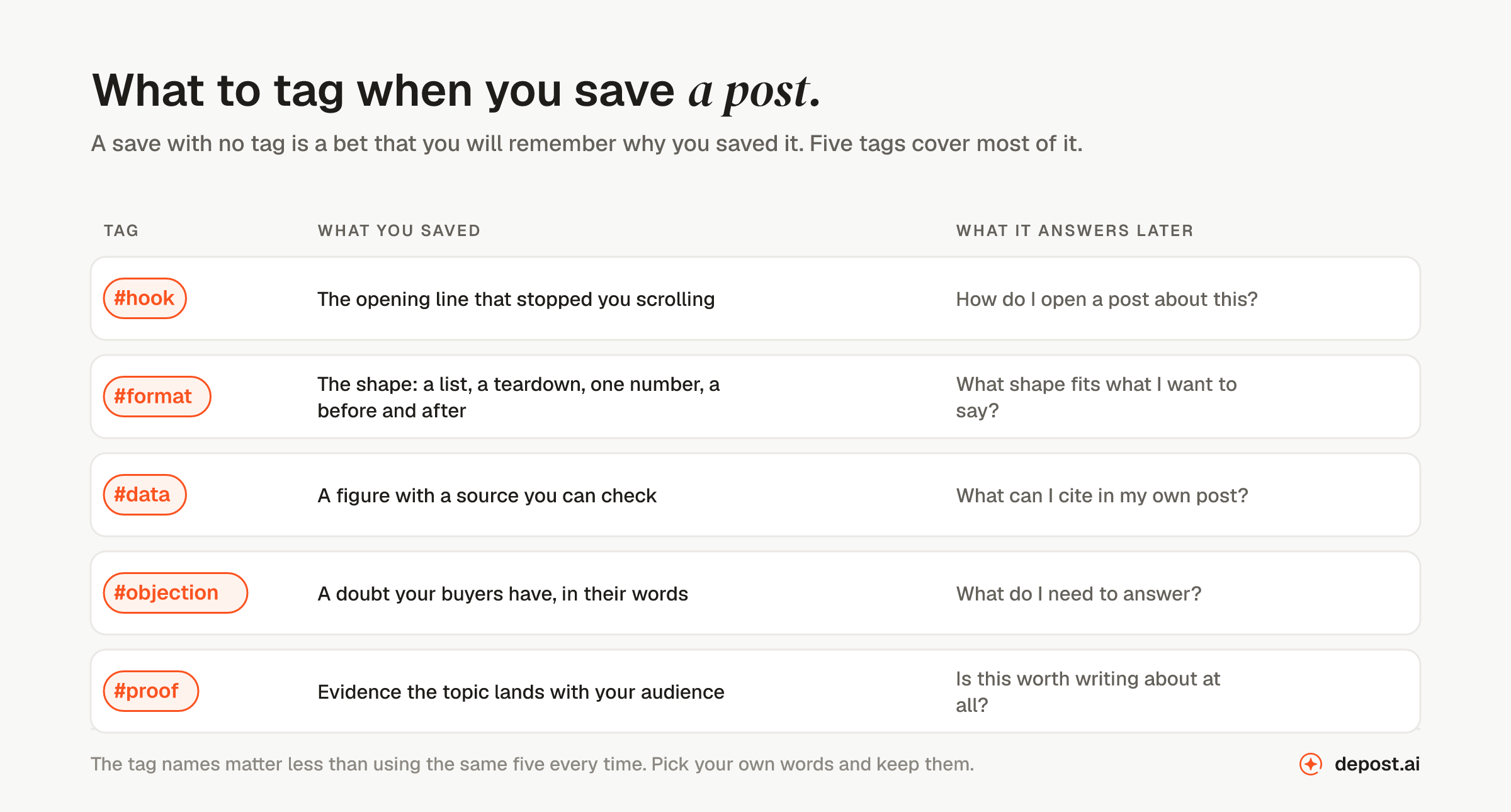
Pick your own words if you prefer, but keep the set small and use it consistently. A file with forty tags is the same as a file with none.
LinkedIn has no tags, so you need somewhere to put them. The three options that work in practice:
- A note on your phone. Free, immediate, and enough if you save a couple of posts a week. You are copying the link and one word.
- A document or a spreadsheet. Better for reviewing in bulk, worse in the moment, because saving takes a browser tab and a paste.
- A tool that does it at the point of saving. The only version that survives a busy week, because the tag goes on while you are still looking at the post.
How to turn a saved post into a post of your own
Saving is the easy half. This is the half that produces a post. You are borrowing the shape of a post that worked. You are not borrowing its words, its numbers, or its opinion.
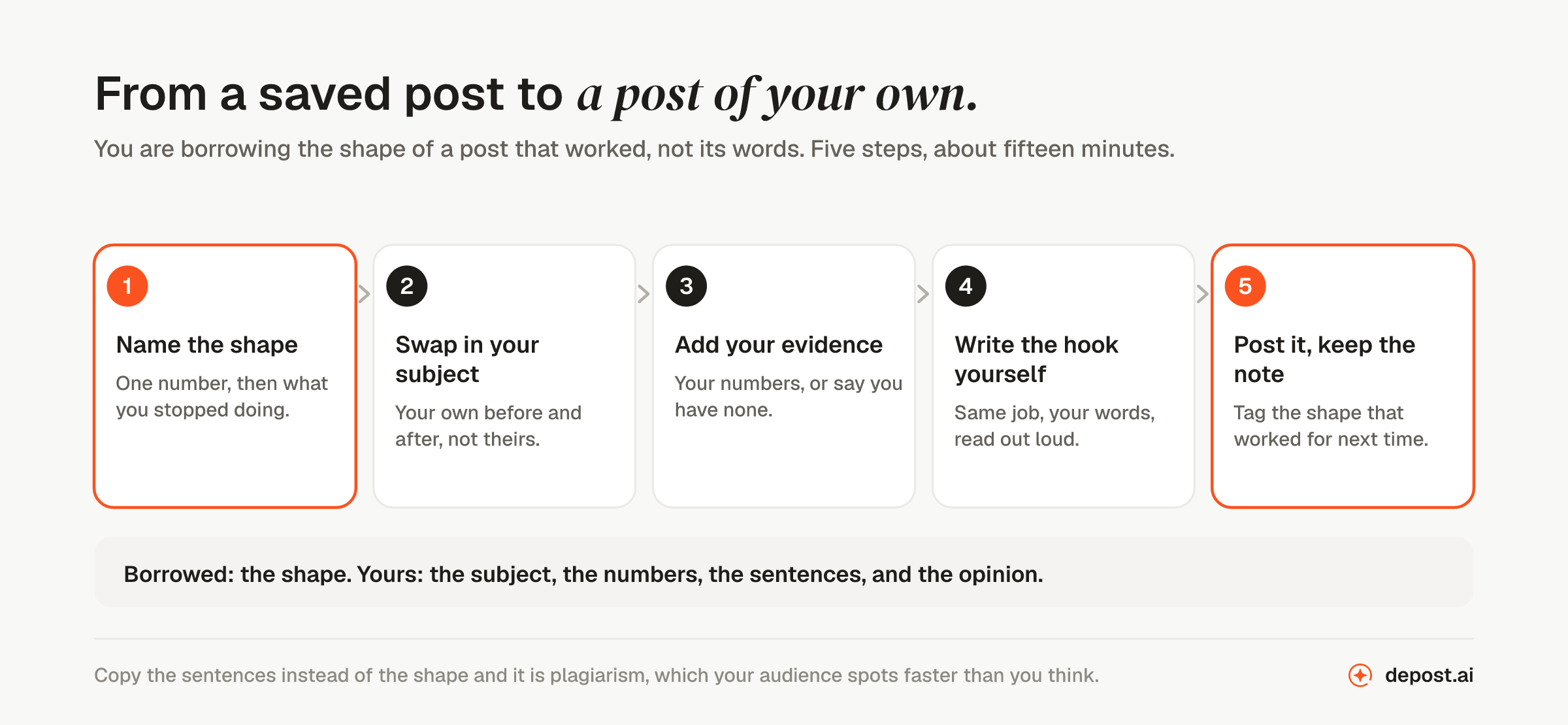
1. Name the shape
Write the structure down in one sentence, without the subject. “One number, then the three things they stopped doing.” “A mistake, then what it cost, then the fix.” If you cannot describe the shape in a sentence, you have not understood why the post worked, and you will end up copying sentences instead.
2. Swap in your subject
Now fill that shape with something only you can write about: a project you ran, a number from your own business, a pattern you see across your clients. The shape stays, everything inside it changes.
3. Add your own evidence
This is where most repurposed posts fall over. If you do not have a number, say so plainly and use an example instead. Borrowed structure with invented evidence is how a post gets picked apart in the comments.
4. Write the hook yourself
Read the original’s first two lines, work out what job they do, then close the tab and write your own. If the original opened by naming a cost, name your cost. Do not paraphrase the sentence, because the people most likely to spot a paraphrase are the ones who read the original.
5. Post it, then tag what worked
If the shape performed, tag it again in your file. After a few months you know which shapes work for your audience, which is worth more than any list of tips.
A worked example
Say you saved a post from a recruiter: one number at the top, then the three things they stopped doing to get it. Say you are not a recruiter: you run a small agency.
The shape is “one number, then the subtractions.” Your version: the month you cut your proposal template from nine pages to two, the three sections you deleted, and what happened to your close rate. Same structure, none of the same content, and a post only you could write.
Repurposing, reposting, and copying
| What it is | Fair to do | |
|---|---|---|
| Reposting | Sharing someone’s post to your feed with credit | Yes, and it costs you nothing |
| Repurposing | Reusing the structure with your own subject and evidence | Yes, and it is how most good posts get built |
| Copying | Reusing the sentences, lightly reworded | No, and your audience notices |
If you want the other side of this, repurposing your own content covers getting a second and third post out of things you already published.
A weekly routine that keeps the file useful
The upkeep is about ten minutes a week.
- While you read. Save anything that made you stop, with one tag. Two or three a day is plenty. If you cannot pick a tag in five seconds, do not save it.
- Friday, ten minutes. Open the file, delete anything you no longer understand the point of, and pick one post to build on next week.
- Once a month. Look at which tags you actually use. If you have not opened #proof in six weeks, drop it.
The file should get smaller as often as it gets bigger. A saved list you never prune becomes the same unreadable pile as LinkedIn’s own.
How Depost AI does this for you
We built bookmarks into Depost AI because the gap between saving and writing is where the habit breaks.
Save the whole post, not a link to it. Save any LinkedIn post to Depost AI while you read it. The text, the author, the likes, comments and reposts as they stood, the media, and the link all come along, so the bookmark still works if the original is deleted.
Tag it as you save. The tag goes on in the moment, not in a separate app later. Star the ones that matter and they stay at the top.
Search everything you kept. Search the text of every saved post, and filter by tag, by post format, or by platform. The post format and the content pillar are detected on save, so the file sorts itself.
Repurpose in one step. Every bookmark has a Repurpose action. It takes the post you saved and your angle on it and drafts your version in your voice, using what Depost AI knows about how you write, which is what brand memory is for. You edit the draft and approve it. Nothing is posted for you.
The same tab holds the viral posts library: posts we collected and broke down by hook, format, and score, next to the ones you saved yourself.
FAQ
Where do I find saved posts on LinkedIn?
On a computer, click Saved items in the left pane of your homepage, then Saved posts and articles, or go straight to linkedin.com/my-items/saved-posts. In the app, tap your profile picture, then Saved posts.
Can I search my saved posts on LinkedIn?
No. The saved posts page has no search box, and LinkedIn’s main search bar does not look inside your saved items. The only controls are the All and Articles filters.
Can I organize saved posts into folders on LinkedIn?
No. There are no folders, tags, or notes, and no way to change the order. The list runs newest save first.
Why did my saved LinkedIn posts disappear?
Usually they did not: the list is ordered by when you saved, loads in batches, and older saves sit well below the newer ones. If an entry is genuinely gone, the author deleted the post or closed the account, because a save points at the live post rather than storing a copy.
Is there a limit to how many posts you can save on LinkedIn?
LinkedIn does not publish one and its help pages do not mention a ceiling, which is the same pattern as the daily comment limit. The practical limit is attention: an unsearchable list stops being opened long before it fills up.
Does LinkedIn tell the author when you save their post?
No. Saving is private, the author gets no notification, and nothing about it shows on your profile.
Can I export my saved posts from LinkedIn?
There is no export on the saved posts page. If you want a list you can keep, sort, or hand to someone else, build it outside LinkedIn as you save.
Is it legal to repurpose someone else’s LinkedIn post?
Reusing a structure is normal practice and nobody owns a post shape. Reusing the sentences is copying, whether or not you reword them. Write your own hook, use your own examples, and credit the person if the idea is clearly theirs.
What is the difference between saving a post and saving an article?
Nothing on LinkedIn’s side. Both land in the same list, and the Articles filter is what separates newsletters and articles from the rest.