LinkedIn post date extractor
The LinkedIn feed labels a post by its age, as 2w or 3mo, not by the day it went up. The date is in the link anyway: every post and comment ID carries the moment it was created. Paste a link and see it to the second, in your time zone.
How to find the date of a LinkedIn post
- 1
Copy the link
On the post, open the three-dot menu and choose Copy link to post. For a comment, open the comment’s own three-dot menu and copy the link to the comment.
- 2
Paste it above
Paste it into the box. Paste several at once if you want to compare them, one link per line.
- 3
Read the date
The exact date and time appear immediately, in your time zone and in UTC, with how long ago it was. Copy it as a sentence, or copy a batch as a table.
Where the date is hiding
Every LinkedIn post has a 19-digit ID, and you can see it in the link. In
linkedin.com/feed/update/urn:li:activity:7503060207774785537 it is the long number at the end. The
number is not random. LinkedIn builds it so that its first 41 binary digits are the moment the post was created,
counted in milliseconds since the start of 1970.
Drop the last 22 binary digits, which is the same as dividing by 4,194,304 and ignoring the remainder, and that ID becomes 1,788,868,953,651 milliseconds. That is 8 September 2026 at 12:02:33 UTC. LinkedIn’s own page for the post gives the same second. The extractor does exactly that arithmetic, on this page, for every link you paste.
Comments and replies are numbered the same way, which is why a comment link gives you the comment’s time as well as the post’s. The ID is fixed when the post is created, so the date does not depend on the post still being online.
What people use it for
- Checking whether news going around is new, or a post from last year being passed on again.
- Citing a post in an article or a report, where “3mo” is not a date.
- Putting a long comment thread back in order, and seeing how quickly the first replies arrived.
- Settling which of two people posted the same idea first.
- Working out when an account you admire actually publishes. Paste a few of their posts and the extractor names the day and hour most of them went out.
Their timing is not your timing
Knowing when a successful account posts is interesting and rarely transferable. Their audience lives in their time zones and their industry, and yours may not. The best time to post tool sets out where three large studies agree, and the guide behind it shows how to test your own window in four weeks.
Depost AI does that test for you. It keeps every post you publish with its numbers, reads when your own audience engages, and suggests queue times from that instead of from somebody else’s chart.
Questions
- How do I see the exact date of a LinkedIn post?
- Copy the post’s link from its three-dot menu and paste it into the extractor above. The date and time appear straight away, to the second, in your own time zone and in UTC. The feed labels a post by its age, but the exact moment is encoded in the post’s ID, which is part of every post link.
- Why does LinkedIn show 2w or 3mo instead of a date?
- That is how the feed labels age: short, and it keeps moving as the post gets older. The precise time still exists. Every post, comment, and reply gets a 19-digit ID when it is created, and the first part of that number is the creation time in milliseconds. Reading it from the link works on a phone, on a comment, and on a link someone sent you.
- Can I see when a LinkedIn comment was posted?
- Yes. Open the comment’s three-dot menu, copy the link to the comment, and paste it here. Comment IDs carry their creation time the same way post IDs do, so you get the comment’s exact time, the post’s time, and how long after the post the comment arrived. A link to a reply shows the reply, the comment it answers, and the post.
- Does it work with lnkd.in short links?
- Yes, with one extra step. The LinkedIn app copies short lnkd.in links, and those do not contain the post ID, so the extractor has to open the link once to find the post it points to. It only does that when you press the button, and it only works for posts that are public.
- Does it work if the post has been deleted?
- For a full link, yes. The date is read from the link itself, so nothing needs to be fetched and it makes no difference whether the post still exists. A short lnkd.in link is different, because the post has to be reachable for the link to be followed.
- How accurate is the date?
- To the second. We checked it against the publish time LinkedIn itself puts in the page for posts and comments, and the two agree, with comments matching to within a millisecond. What it cannot tell you is the author’s time zone, so the time is shown in yours, with UTC alongside for anyone you share it with.
- Can I check several posts at once?
- Yes. Paste as many links as you like, one per line. You get every date in a list you can sort oldest first and copy as a table into a spreadsheet. With three or more posts from one account, it also tells you which day and hour most of them went out.
- Does it send my links anywhere?
- Full links never leave your browser: the date is worked out from the number in the link, on this page. Only short lnkd.in links are sent, and only when you ask, to our server, which opens the link and returns the post it points to. Nothing is stored and nothing connects to your LinkedIn account.
From the blog
All posts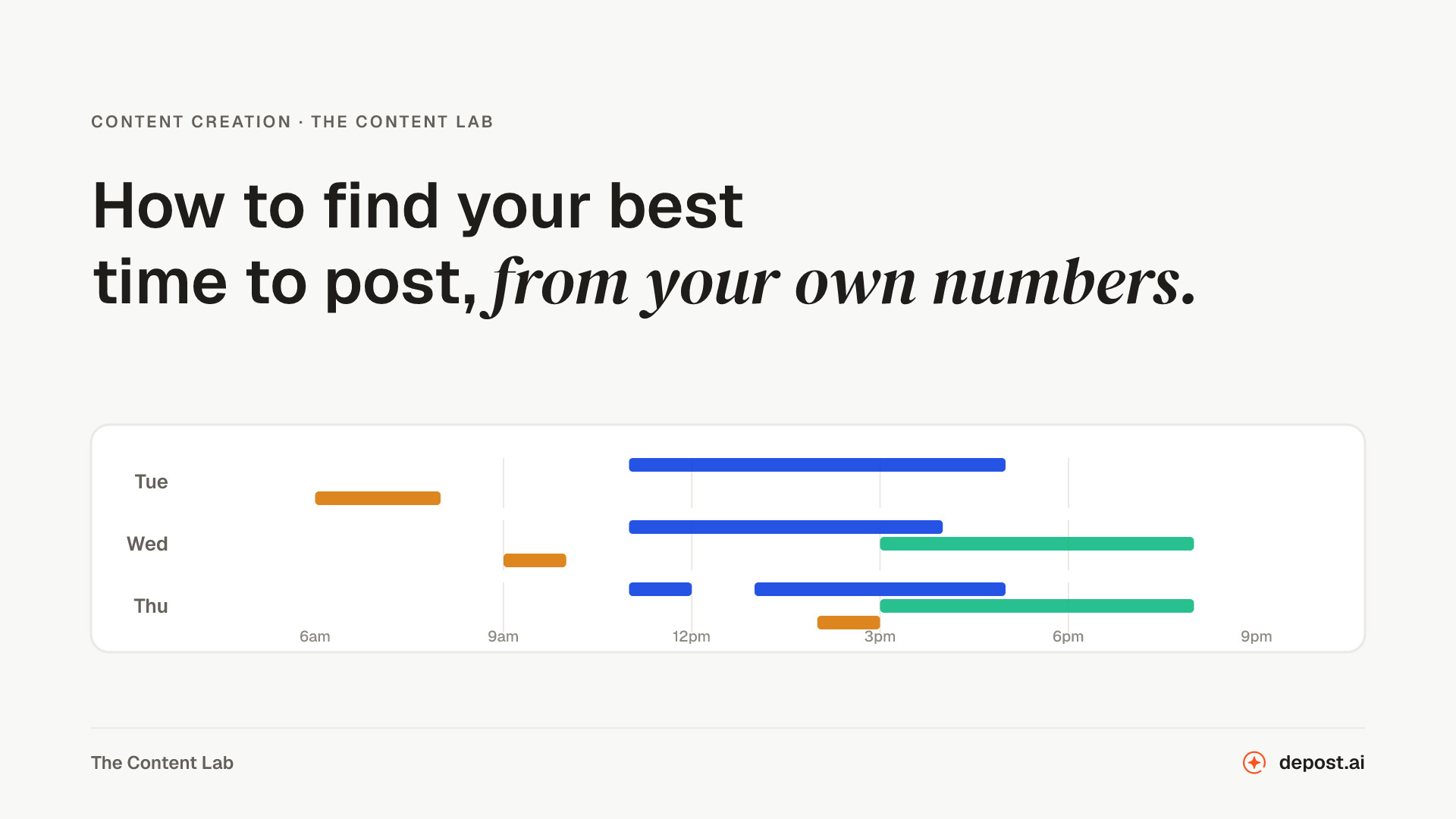
Next
Best Time to Post on LinkedIn
When your audience is actually reading, by day and hour, from published engagement research rather than guesswork, converted to your own timezone.
LinkedIn URL Cleaner
Paste a LinkedIn link and get the short version without the tracking: profiles, pages, posts, comments, and jobs. Cleaned in your browser.
LinkedIn Post to PDF
Paste the link of a public post and download it as a PDF with the author, date, full text, images or carousel slides, and the link it came from.
Make LinkedIn your
best-performing channel.
Brief your team once. It studies, plans, writes, designs, and schedules. You approve.
Your brief comes with you: once you're set up, it's the team's first job.
7 days free · Strategy in your first 15 minutes · Cancel anytime