Where is the image going?
Post
Profile
Company page
Drag the image to choose what is kept.
How to fit it
Background fills the space around the image
Format
How to resize an image for LinkedIn
- 1
Choose where it is going
Pick the spot on LinkedIn: a post, your profile banner, a company page cover, a logo, or a Life tab image.
- 2
Add your image
Drop it in, paste it, or click to choose a file. It opens in your browser and is not uploaded.
- 3
Frame it
Drag the image and use the zoom to choose what is kept. To keep everything, choose Show the whole image and pick a background.
- 4
Download
Choose JPG or PNG, check the file size against LinkedIn’s limit, and download.
The sizes it uses
Every size below was read on LinkedIn’s own site on 5 October 2026. Where LinkedIn publishes no pixel size, the table says so.
| Image | Size | Shape | Source |
|---|---|---|---|
| Post image, landscape | 1200 × 627 px | 1.91:1 | LinkedIn Help |
| Post image, square | 1200 × 1200 px | 1:1 | LinkedIn Help |
| Post image, portrait | 1080 × 1350 px | 4:5 | LinkedIn Help |
| Carousel slide, portrait | 1080 × 1350 px | 4:5 | No official size |
| Carousel slide, square | 1080 × 1080 px | 1:1 | No official size |
| Profile banner | 1584 × 396 px | 4:1 | LinkedIn Help |
| Profile photo | 400 × 400 px | 1:1 | LinkedIn Help |
| Company page cover | 1512 × 256 px | about 6:1 | LinkedIn Help |
| Company page logo | 400 × 400 px | 1:1 | LinkedIn Help |
| Life tab main image | 1128 × 376 px | 3:1 | LinkedIn Help |
| Life tab custom module | 502 × 282 px | about 16:9 | LinkedIn Help |
| Life tab company photo | 900 × 600 px | 3:2 | LinkedIn Help |
Crop it, or keep the whole image
Fill and crop makes the image cover the whole size. Anything that does not fit is cut off, and you drag to choose what stays. Use it for photos.
Show the whole image keeps everything and fills the space around it with a background. Use it for a screenshot, a chart, or anything with text near the edges.
A banner is the hardest shape, because it is four times as wide as it is tall and your profile photo covers part of it. The banner size guide shows which part is covered, and the banner generator makes one from scratch at the right size.
Not sure which size you need?
The post image size page lists every size with its source, and checks an image you already have against them. For a profile photo, use the profile picture resizer, which frames it in LinkedIn’s circle.
If you would rather not make the image at all, Depost AI designs an infographic with every post it drafts, in your colors and fonts and already at a feed size.
Questions
- How do I resize an image for LinkedIn?
- Choose where the image is going, such as a post, your banner, or a company page cover. Drop the image into the tool, drag it to choose what is kept, and download it. The file comes out at the exact size LinkedIn gives for that spot.
- What size should a LinkedIn post image be?
- LinkedIn Help gives 1200 × 627 pixels, a 1.91:1 shape, for a custom image on a post with a link. Its ad specifications also give 1200 × 1200 for a square image, and 4:5 for a portrait image at 720 × 900 or larger. The full list is on the post image size page.
- How do I fit a whole image without cropping it?
- Choose Show the whole image. The image is scaled to fit inside the size, and the space around it is filled with a color you pick or with a blurred copy of the image. Use this when cropping would cut off text or a face.
- Will resizing make my image blurry?
- Making an image smaller keeps it sharp. Making it larger does not add detail, so a small image stretched to a bigger size looks soft. The tool tells you when that is happening, so you can start from a larger file.
- JPG or PNG: which is better for LinkedIn?
- Use JPG for photos, because the file is much smaller. Use PNG for graphics with text, logos, or flat color, because the edges stay crisp. The tool shows the file size next to LinkedIn’s limit for the size you chose.
- Is my image uploaded anywhere?
- No. The image is opened and resized by this page, in your browser. It is never sent to a server, and nothing connects to your LinkedIn account.
- How do I resize my LinkedIn profile photo?
- You can use the Photo size here. For a profile photo, the profile picture resizer is the better tool: it shows your photo inside the circle LinkedIn crops it to, and previews it on a profile, a post, and a comment.
From the blog
All posts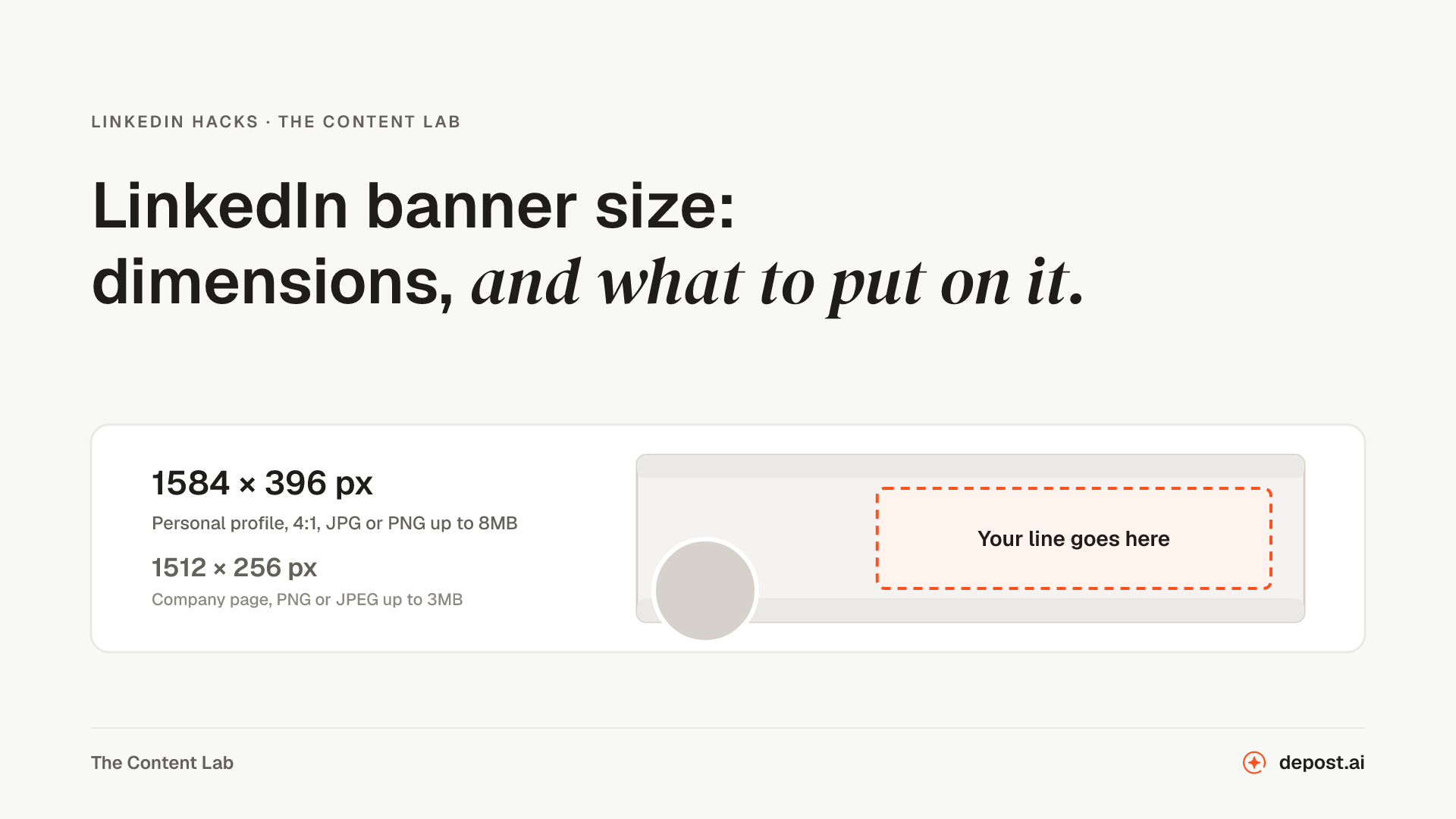
Next
LinkedIn Post Image Size
Every LinkedIn image size in pixels, each with the LinkedIn page it comes from, and a checker that measures your own image against them.
LinkedIn Profile Picture Resizer
Your photo framed in LinkedIn’s circle and exported as a square that uploads the first time, checked against the 8MB limit. Nothing leaves your browser.
LinkedIn Banner Maker
The 1584 by 396 background photo at the right dimensions, with your line placed wherever you drag it, instead of the default blue nobody has changed since 2016.
Make LinkedIn your
best-performing channel.
Brief your team once. It studies, plans, writes, designs, and schedules. You approve.
Your brief comes with you: once you're set up, it's the team's first job.
7 days free · Strategy in your first 15 minutes · Cancel anytime